Using dMLX
- To make an image: describe it. To change an image: write what to change. To start again: describe a different image.
- To use an older image: refer to it in your message (“make image 1 black and white”, “put the teapot from the first one in the boat”).
- To use your own images: attach a maximum of 3 images from your Mac with the paper clip. As an alternative, drop the images on the message box. A prepared image from Crop / Draw is one of the 3.
- Variations adds v2, v3… to a result. Crop / Draw crops a result or paints on it, and then attaches the prepared image. The save button writes the image to Pictures/dMLX with its prompt and seed.
- Edit Prompt… on one of your messages runs the image of that message again with the new words.
- While the app makes an image, the send button changes to Stop. You can write your next message during this time.
- Tips: after the first-run setup, short tips point at the message box, the paper clip, the size menu, the new image or edit control, and New creation. After your first image, tips explain versions, Variations and Crop / Draw, and the editor explains its tools. To see the tips again, select Help → Show Tips Again.
What you can make
Section titled “What you can make”Each example is a chat in the app, with Auto set. The agent selected the model. For a removal, the first message makes an image and the second message removes something from it.
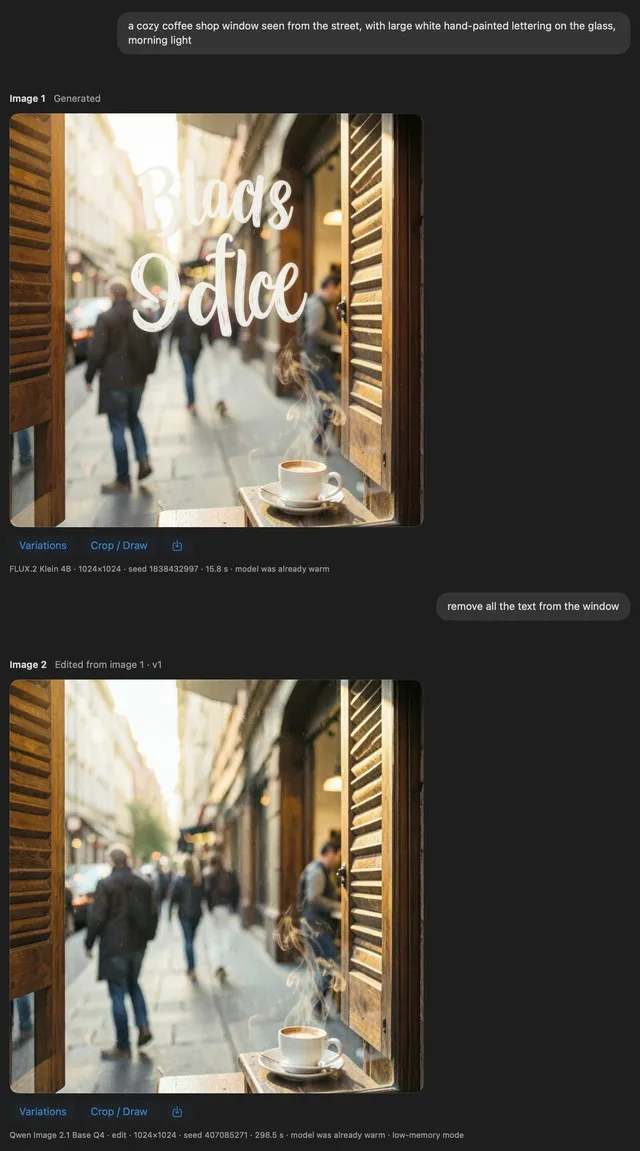
Remove text
Section titled “Remove text”“remove all the text from the window” · Qwen Image 2.1 · about 5 min
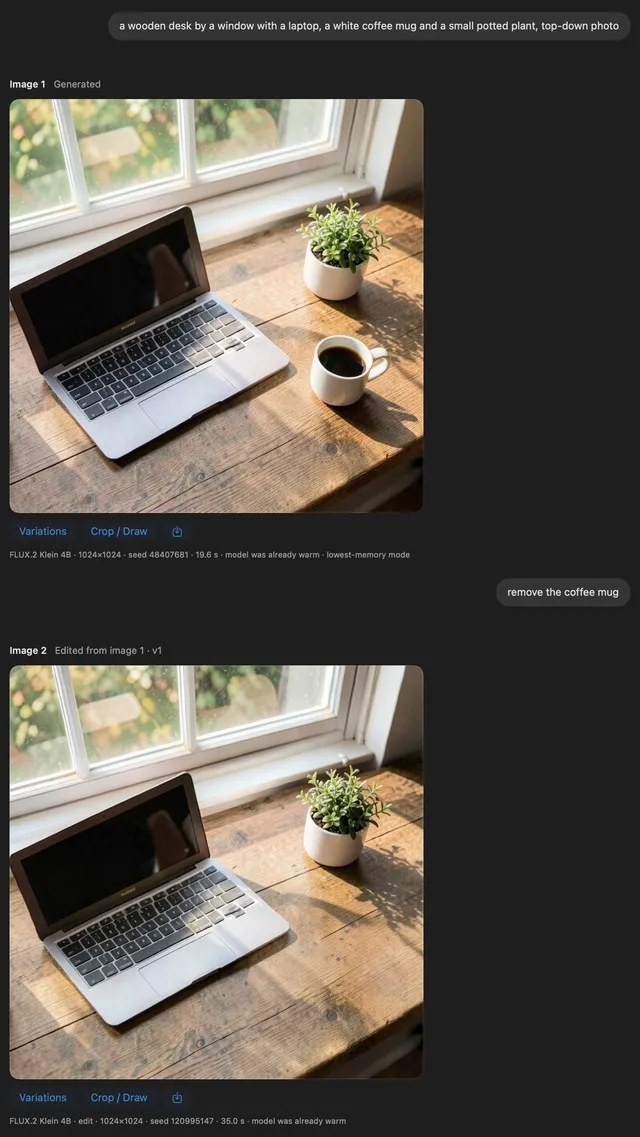
Remove an object
Section titled “Remove an object”“remove the coffee mug” · FLUX.2 Klein 4B · 36 s
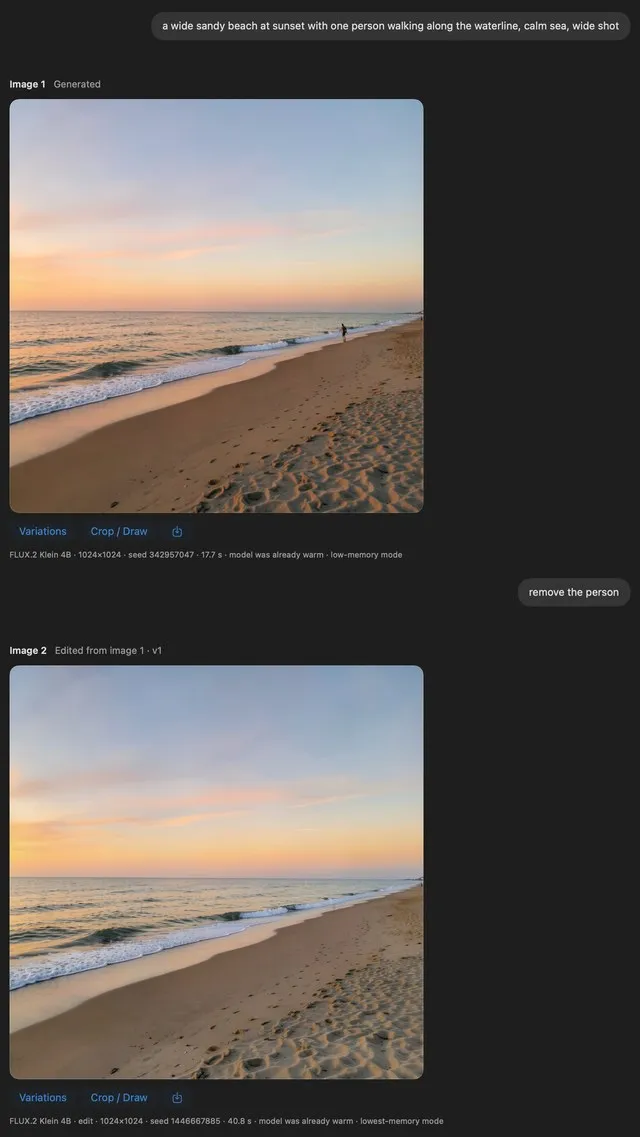
Remove a person
Section titled “Remove a person”“remove the person” · FLUX.2 Klein 4B · 40 s
Make a poster
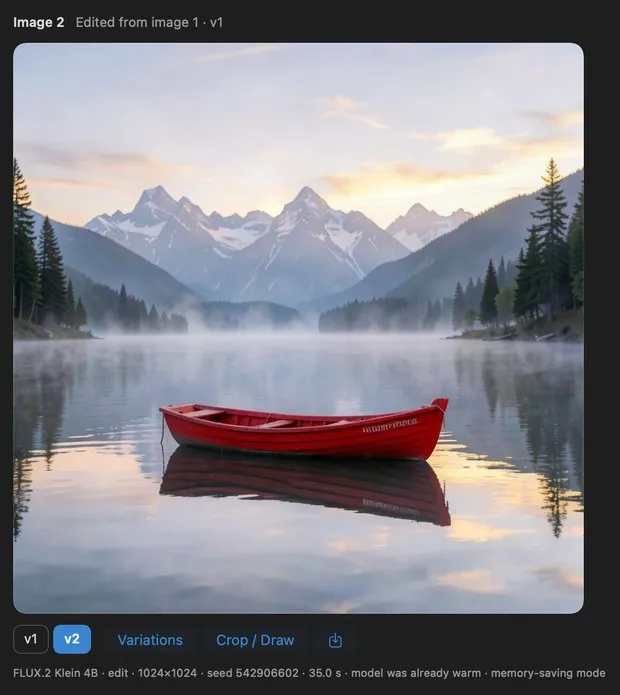
Section titled “Make a poster”A Portrait image with a title · Qwen Image 2.1 · about 4 min
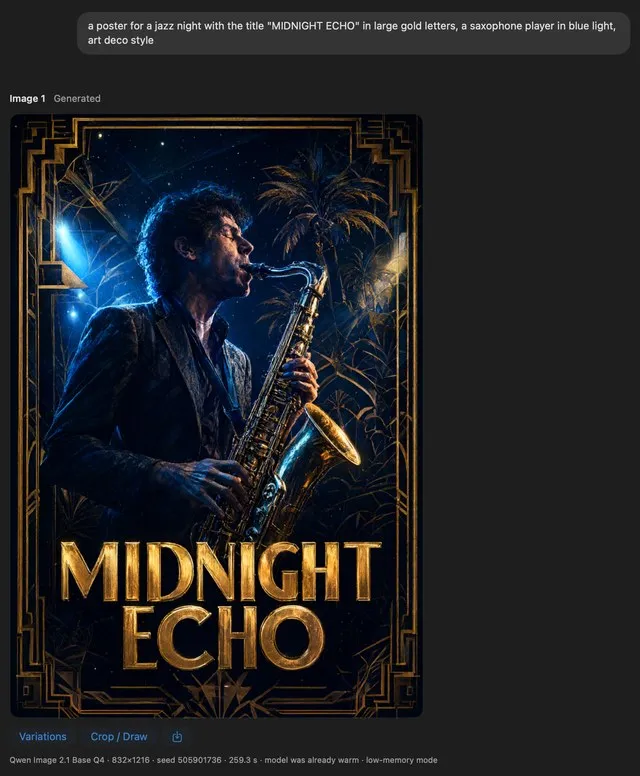
Make a banner
Section titled “Make a banner”A Landscape image with words · Qwen Image 2.1 · about 4 min
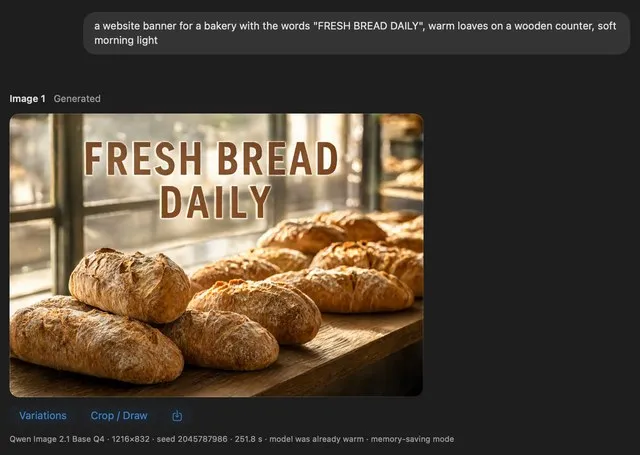
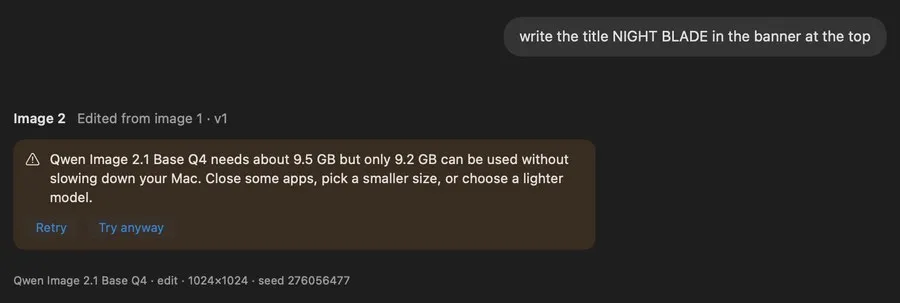
For exact words in an image, the agent usually selects Qwen Image 2.1. This model is slow, it needs about 9.5 GB of free memory, and its license does not permit commercial use. FLUX.2 Klein 4B is fast, but it does not always spell words correctly.
Tour of the app
Section titled “Tour of the app”All screenshots show the app on a 24 GB Mac. The agent model is Qwen3-VL 8B.
The app keeps your message while the agent plans
Section titled “The app keeps your message while the agent plans”After you send a message, the chat shows it with “Planning…” while the agent decides. You can type your next message. You can send it when the plan is complete.
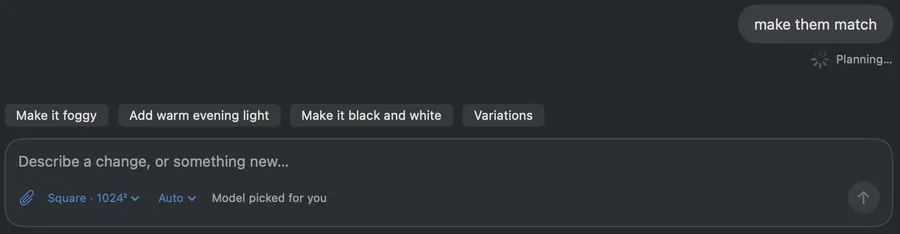
If the agent is not sure, it asks
Section titled “If the agent is not sure, it asks”With two images in the chat, the message “make them match” gets a question. The agent does not guess. You can answer the question, click Create new or Edit current, or send a different request.
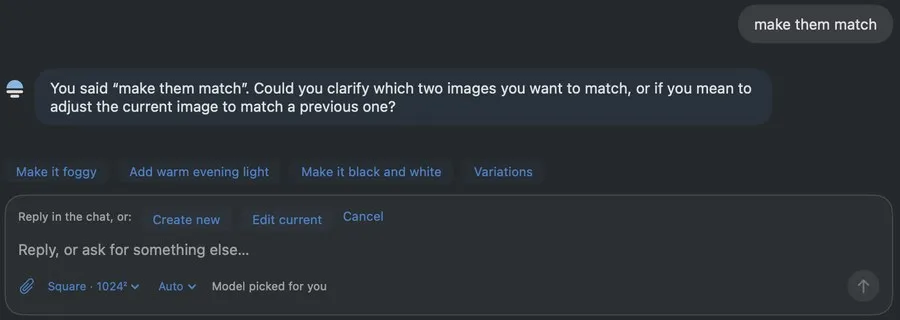
It can use two images
Section titled “It can use two images”The message “give the teapot the same weathered wood as the boat” edits the teapot. It uses the boat as a reference (“Edited from image 2 · v1 + 1 reference”).
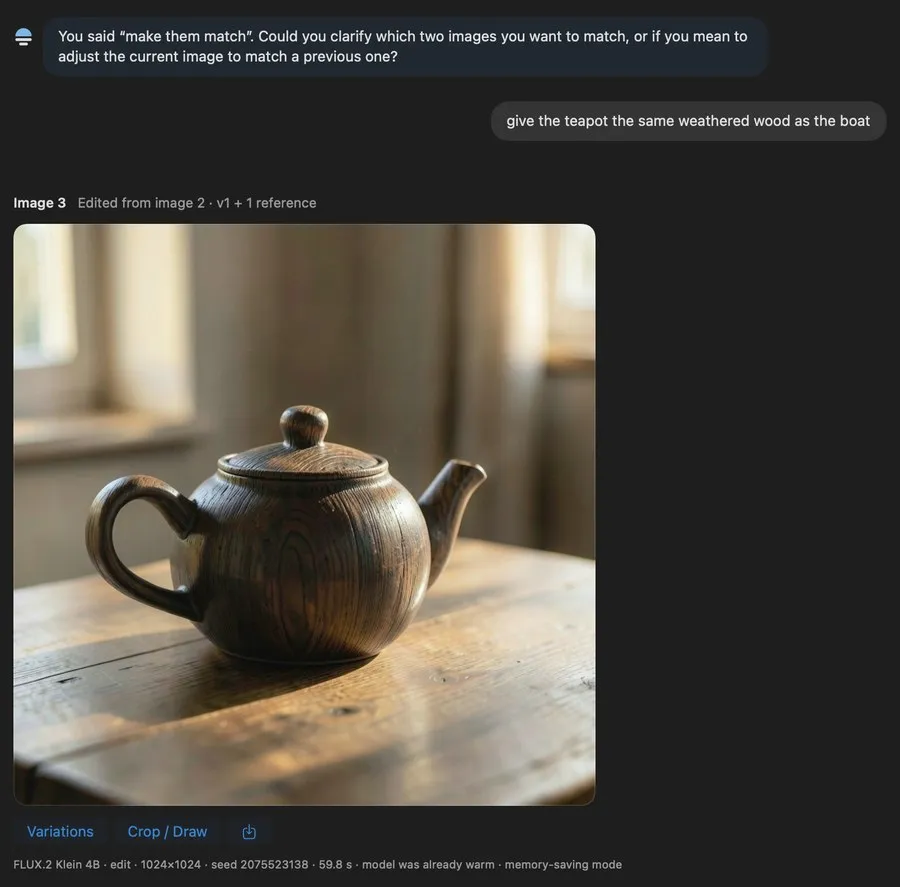
It finds older images
Section titled “It finds older images”The teapot is the latest image. The message “make the boat red” edits the boat in image 1. If the message refers to older images, the agent examines them.
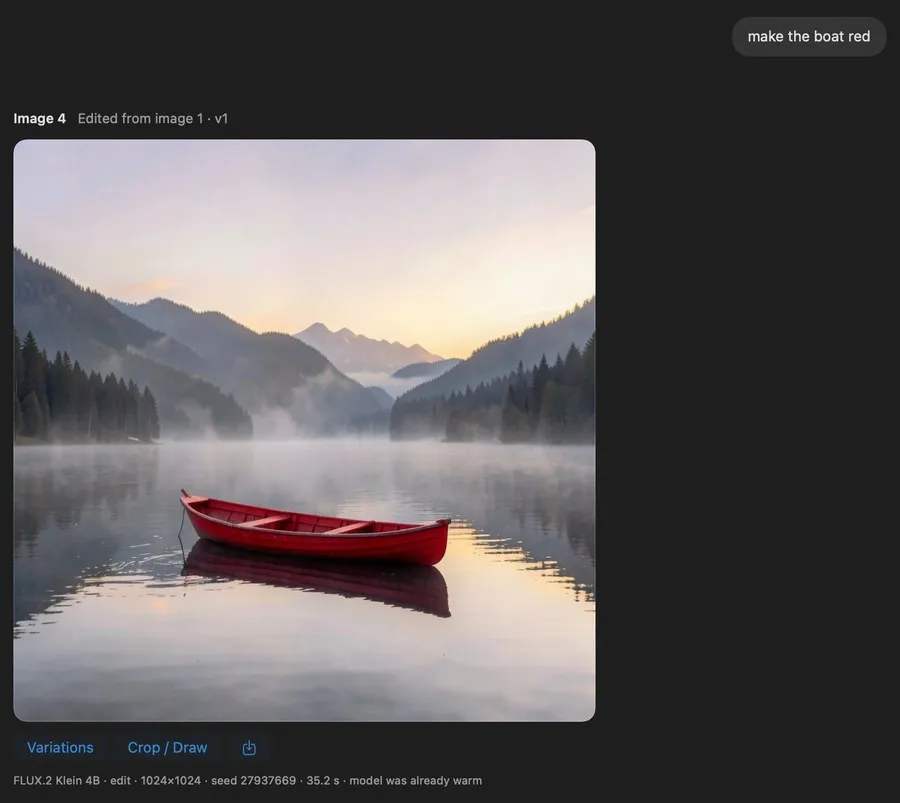
It replies to casual messages
Section titled “It replies to casual messages”If you send a greeting or thanks, the agent replies in the chat. It does not make an image.
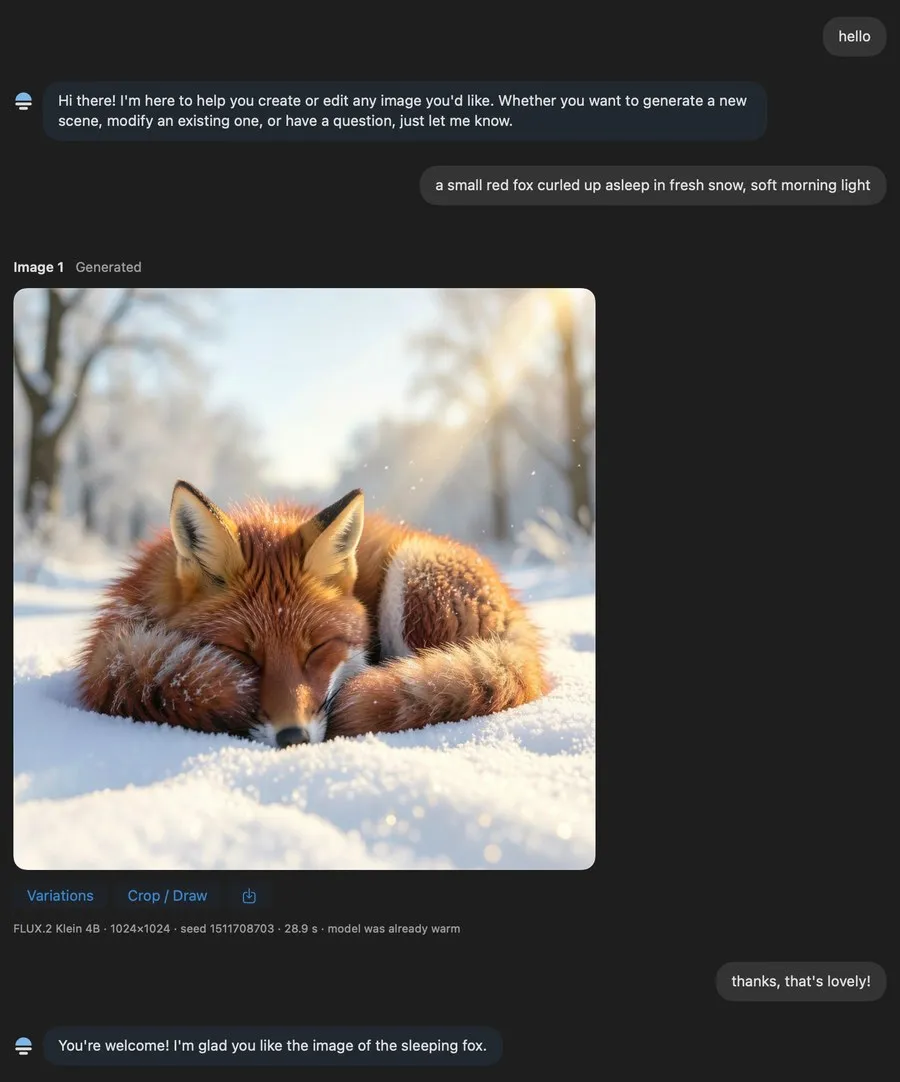
Use your own images
Section titled “Use your own images”You can attach a maximum of 3 images with the paper clip or with drag and drop. The message “a lighthouse on a cliff at dusk, painted like this” uses the attached watercolor as the style.

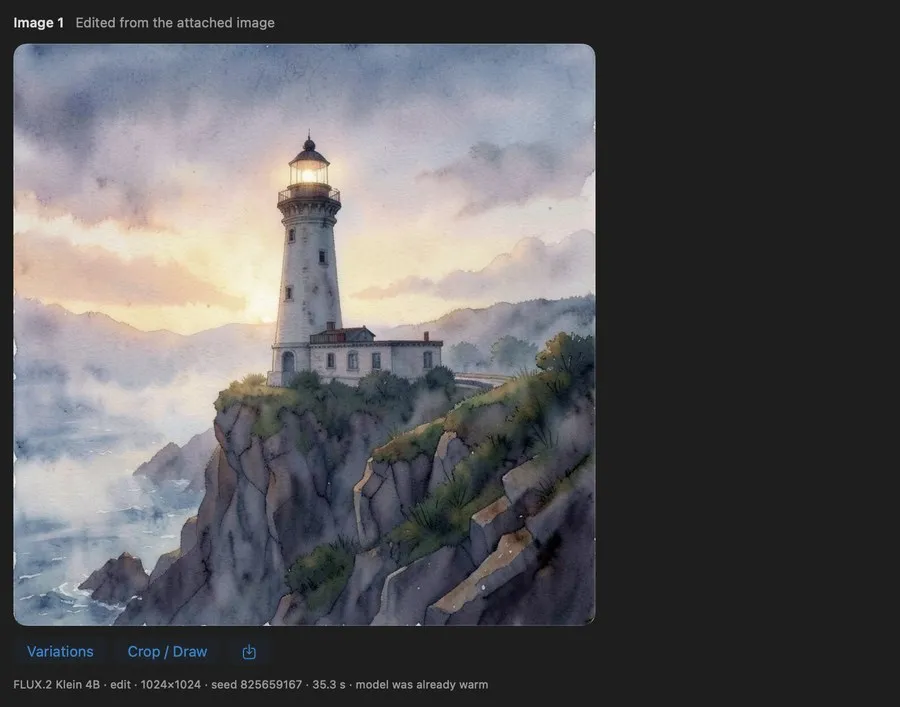
The app keeps every version
Section titled “The app keeps every version”Variations adds v2, v3 and more to a result. Click v1 or v2 to show a version. You can edit each version. The save button writes the image to Pictures/dMLX with its prompt and seed.
Auto selects the model, and the engine first does a memory check
Section titled “Auto selects the model, and the engine first does a memory check”For a title in the image, the agent selected Qwen Image 2.1, because this model is the best at text in images. This model needed 9.5 GB, but only 9.2 GB was available without slowing down the Mac. Thus the engine refused the job. Try anyway runs the job in the mode that uses the least memory. If the Mac becomes slow, the engine stops the job.
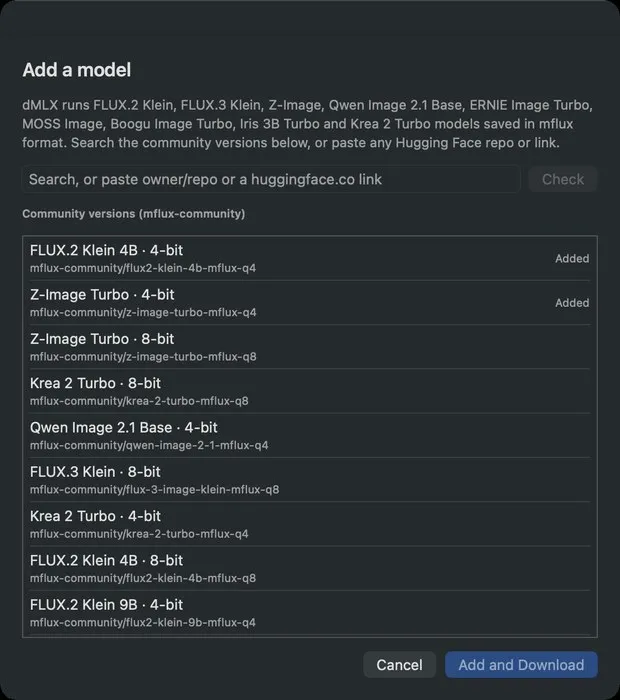
Add models
Section titled “Add models”Use the search field to find community versions of the supported families. You can also paste a Hugging Face repo. Before the download, dMLX makes sure that it can use the repo. It also shows the download size and the license.
Control the models
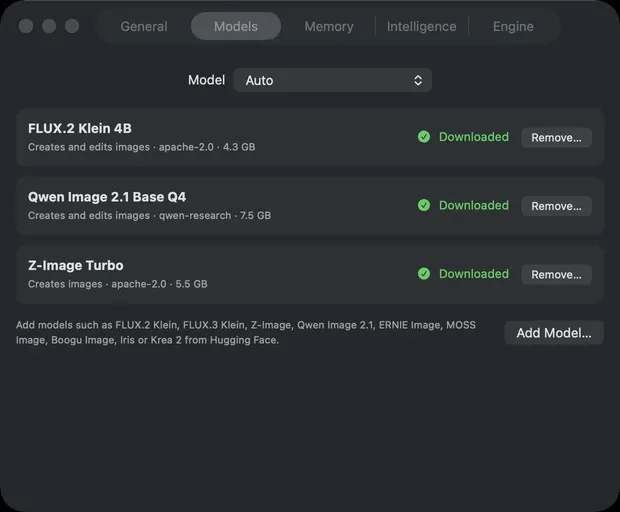
Section titled “Control the models”You can see the installed models, remove models, and set the default model. If you set Auto, the agent selects the model.